
How to register for the event:
First, create a Smoothcomp account:
• Go to Smoothcomp.com. Click “create account” at the top of the page
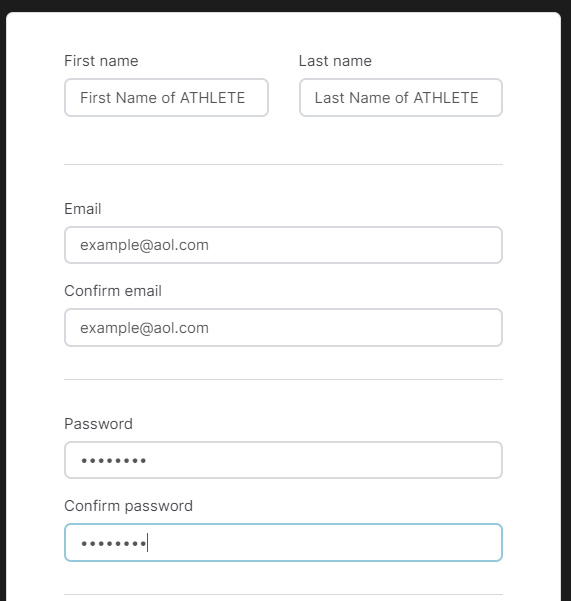
• Fill in Name, Email, and Password. First Name and Last Name should be the NAME OF THE ATHLETE PARTICIPATING. (Unless you are a family with multiple athletes participating. In this case, NAME is the parent and you add children as a different profile, detailed information here: https://support.smoothcomp.com/article/185-how-can-i-manage-different-profiles-from-one-account)
• Click green “Create Account” button
• Accept Terms Of Service Agreement
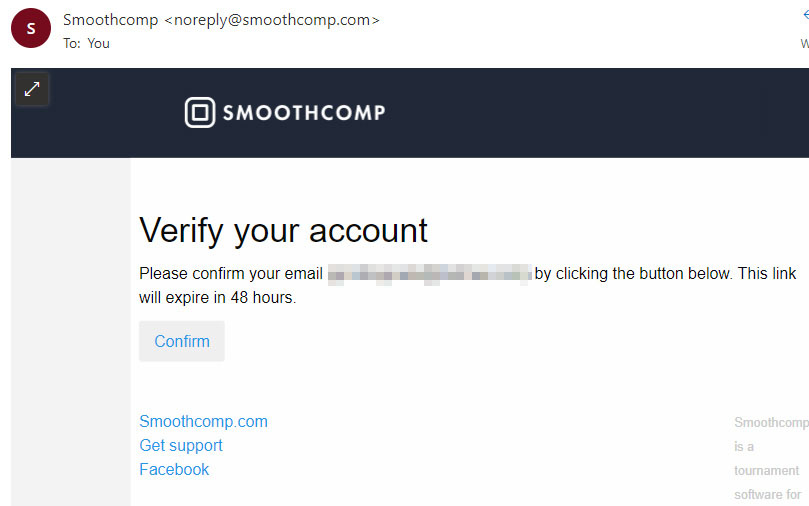
• Check your email and click "Confirm" to Verify your Account. The Email will look similar to this:
Register for Samurai Judo Championships event:
• Go to Smoothcomp.com and Log In using account that you just created.
• Go to Samurai Judo Championships Event Webpage --- https://smoothcomp.com/en/event/8568
• Click blue “Register to Event” button at the top

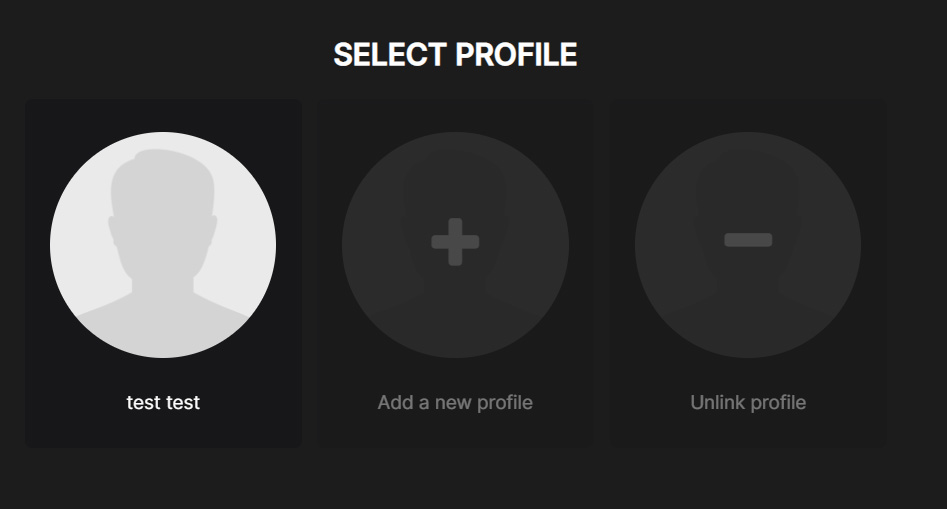
• Choose profile of athlete participating. If you used the athlete's info when creating your account this will be the only profile. If you have a family you can create profiles for each child competing. Details on this page: https://support.smoothcomp.com/article/185-how-can-i-manage-different-profiles-from-one-account
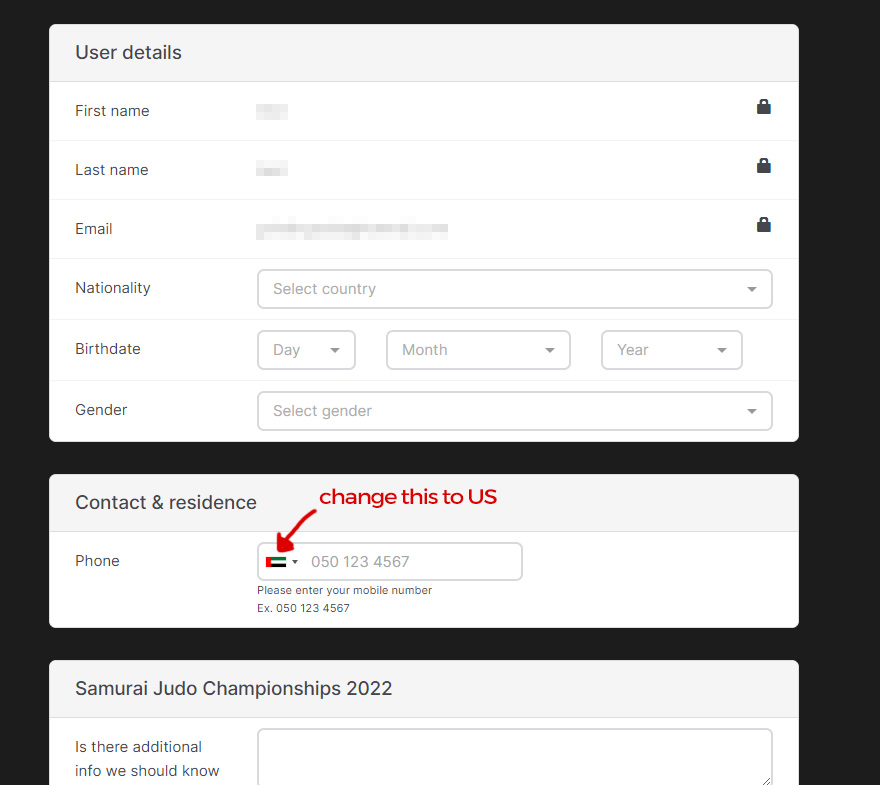
• Add Nationality, Birthdate, Gender, and Phone information (Change flag icon on phone number to US)
United States is far down on the list for Nationality. You can begin typing it in the dropdown menu and it will auto complete and be much faster.
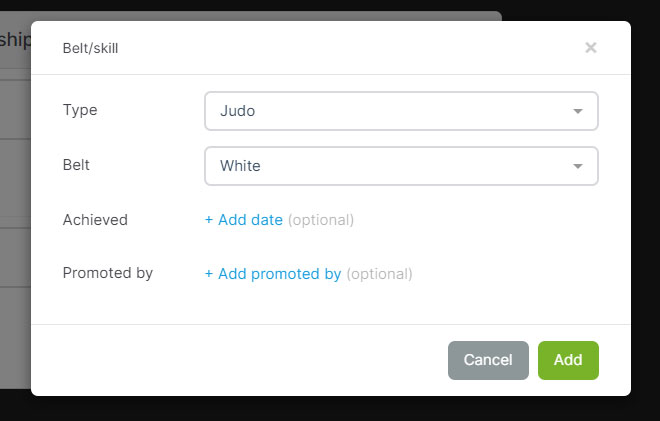
• Add Belt/Skill. ‘Type’ will be “JUDO”, and belt is current belt color. If you have a 2 color belt input the lower color. For example for a White/Yellow belt, choose White. Click "Add".
• Click green “Save and Continue” button at bottom
• On the next page add Acadamy/Club. This is the name of your dojo. Just type it in and it should appear. If it does not, click ‘register new’ OR talk to your sensei/coach. If for some reason you CANNOT join an Academy and you NEED to register, type in 'None' and click on the listing with the USA flag. Your Academy can be changed after in your account profile settings: https://support.smoothcomp.com/article/188-how-do-i-change-my-academy (you may need to contact Tournament director to verify change if athlete's registration info doesn't show updated Academy)
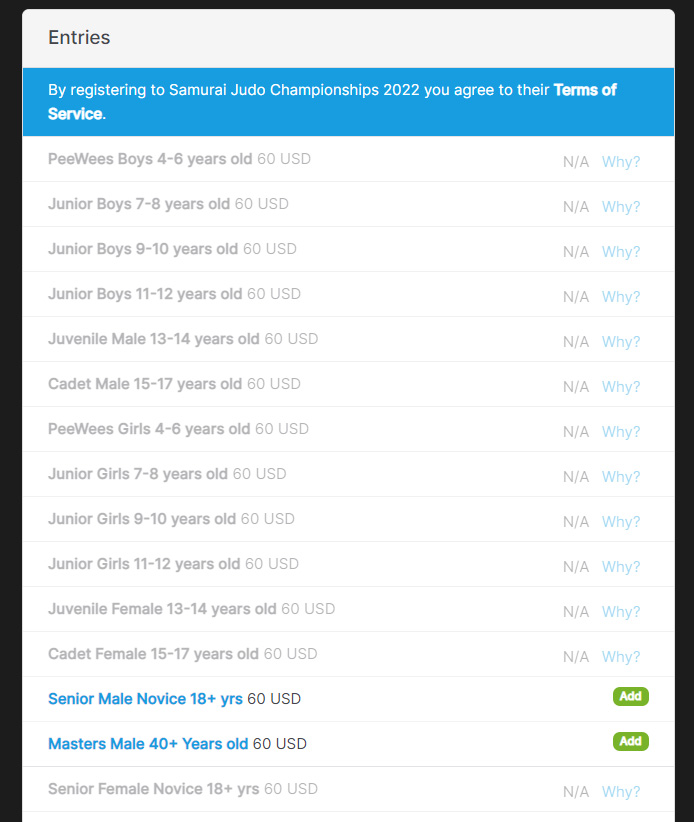
• In Entries section, click green “ADD” button next to appropriate division. Divisions that are N/A are the incorrect age group or gender for the Athlete. This is based on Birthdate/Gender that you entered earlier.
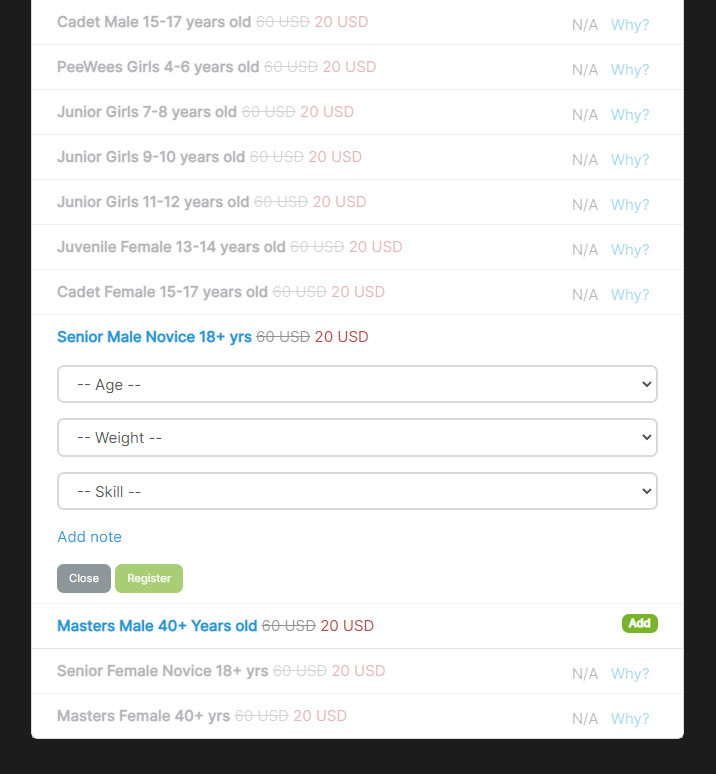
• Enter ‘AGE’ --- ‘Weight Group’ --- and ‘Skill’ in the drop down menus. Weigh in will be in Pounds. Click green “Register” button.
• Accept terms of service. You successfully added your division. Now you just have to pay to complete registration.
• ----OPTIONAL---- If you want to add a 2nd division, Click green “Add” again (next to same age group) and choose one weight group higher/or higher belt color. Add Age/higher Skill/higher weight group and click green “Register” button. Second divisions are 20$
• On a desktop computer (PC or MAC) the "Pending Registrations" (similar to a Cart/Checkout on a shopping website) WILL BE ON THE TOP RIGHT OF THE PAGE.
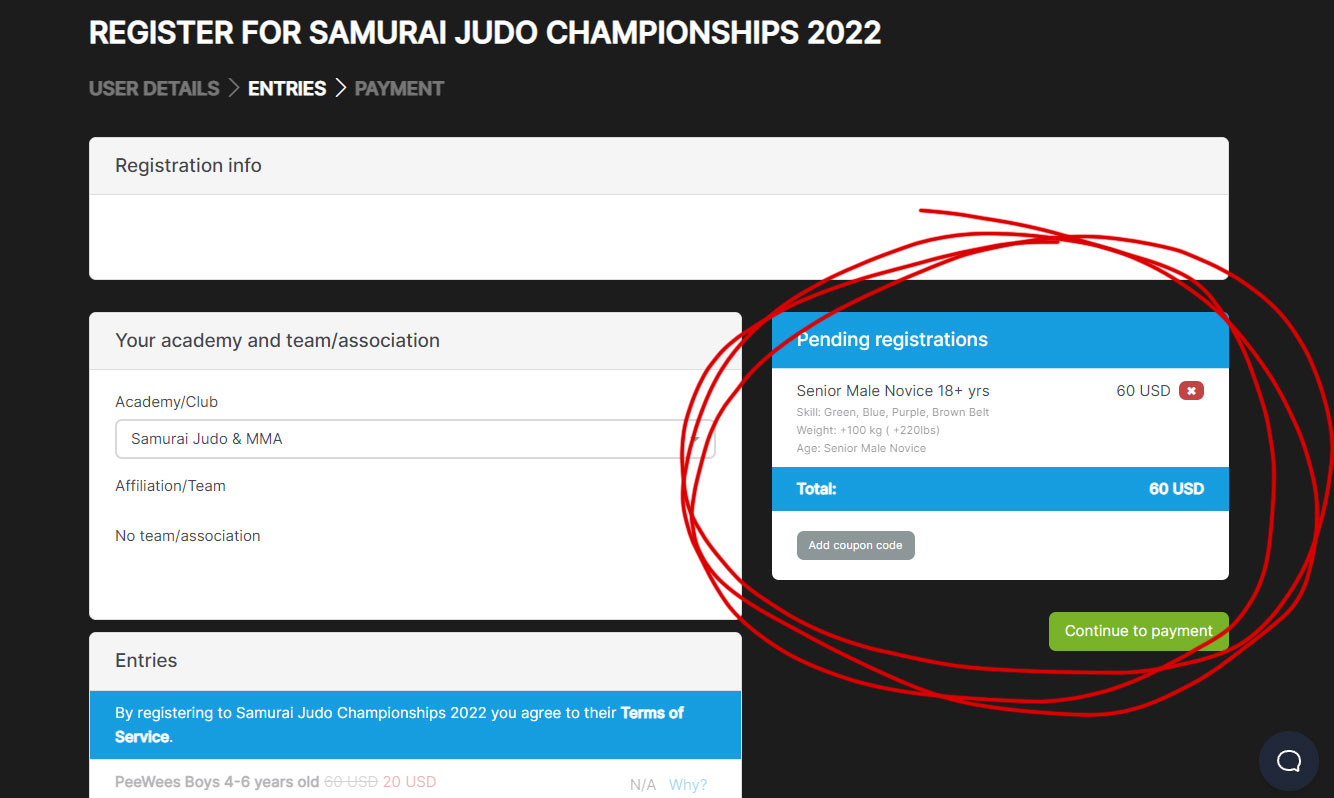
• On a PHONE, "Pending Registrations" will be at the bottom, below the Entries. It will look similar to the PC picture, just lower down on the screen.
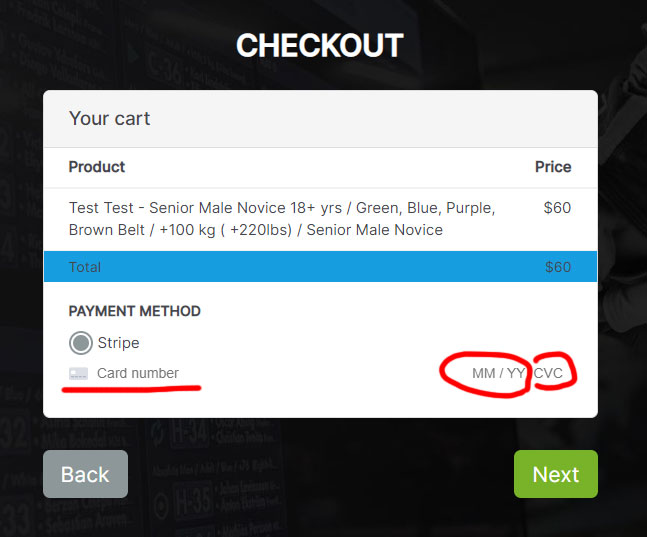
• Click “Continue to Payment” and complete using a credit card. Enter Card Number, Expiration Date, and CVC (Usually the 3 digit code on the back of the card)
We know that creating an account and the registration process can be a bit annoying. Many of the competitions that I see in the area have adopted this system, and after doing it the first time it is very easy to register for future events.
Smoothcomp gives Tournament Directors more accurate information to use when creating divisions and brackets, so hopefully it is worth the extra time and setup. Thanks for your interest!